Escaping the Endless “Scroll Hell”
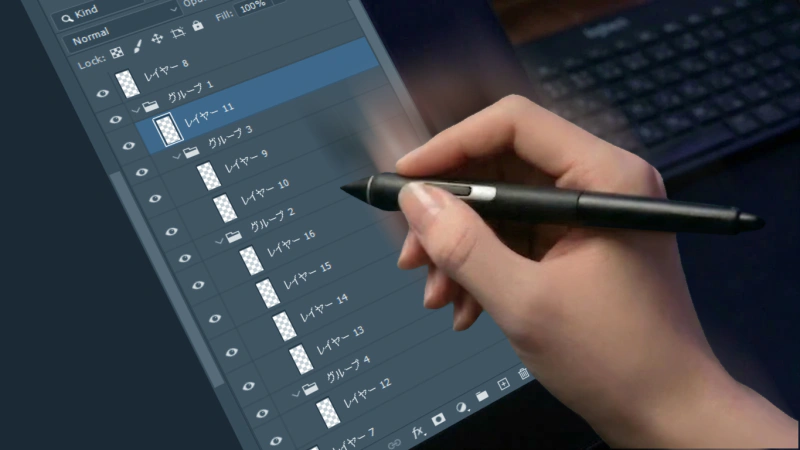
Whether you’re working on large-scale illustrations, complex UI designs, or making final adjustments before delivery, the standard Photoshop Layers panel can often feel like a bottomless pit.
Imagine you need to select a “Character” group at the very top and compare it with a “Distant Background” group at the very bottom. Or perhaps you need to move a layer between them. Do you find yourself constantly spinning your mouse wheel or desperately dragging the scrollbar up and down?
“It’s too far…” “I lost track of where I was just working.” “Oops, I accidentally dropped the layer into the wrong group while dragging.”
This “distance barrier” within Photoshop’s default Layers panel is a major stress factor that tangibly degrades your workflow efficiency.
The Limitations of Default Features: No True Simultaneous View
Photoshop does have a built-in feature to open multiple views of the canvas side-by-side (Window > Arrange > New Window for…).
Unfortunately, however, there is no native feature to split the Layers panel itself into two sections.
You simply cannot slice a long list to monitor the top and bottom simultaneously. The only workaround in default Photoshop is to meticulously collapse and expand folders to save space, but even that introduces an endless, tedious cycle of clicking.
The Solution: “Dual View” with DLLP
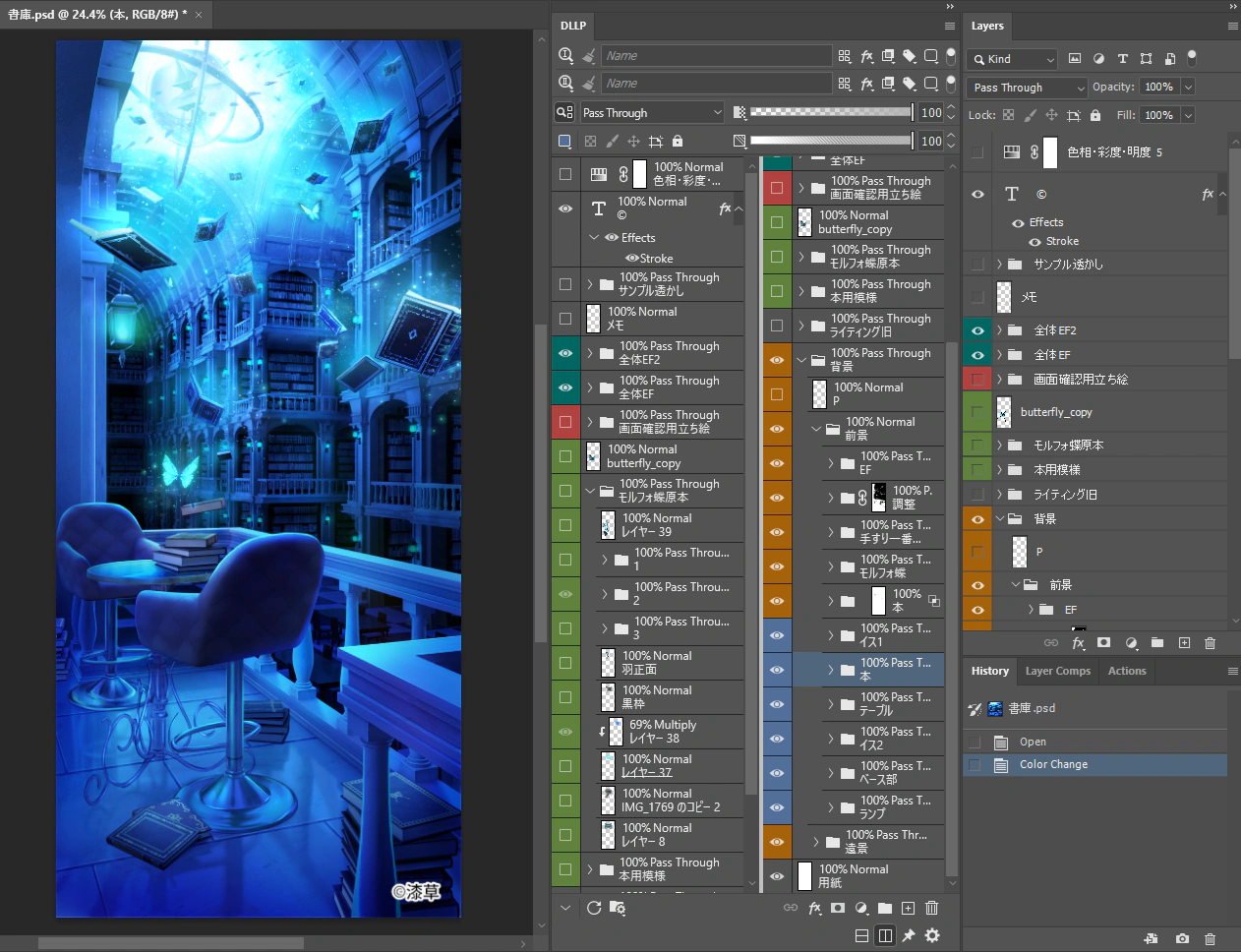
To break through these physical UI limitations, we developed DLLP (Dual Linked Layer Panel) — a dedicated Photoshop plugin that literally gives you “two independent layer panels.”
With DLLP, you can split the panel into two and view different areas simultaneously. It even supports drag-and-drop across views.1. Split Horizontally or Vertically to View Different Areas
DLLP’s most powerful feature is its ability to split into two independent views (V1 and V2), arranged either vertically or horizontally.
With just a click, you can display the “Effects” layers at the top of your list in the upper view (V1), while simultaneously displaying the “Background” layers at the bottom of the list in the lower view (V2).
You no longer have to scroll long distances to access far-away layers.
2. Intuitive Drag and Drop
The two views operate completely independently but their data is synchronized. This means you can instantly grab a layer from the very top of V1 and drag-and-drop it directly into a deep folder visible in V2. Say goodbye to the frustrating accidents of your finger slipping while dragging and scrolling.
3. Powerful Synergy with Independent Filters
What makes this even more effective is combining Dual View with the independent Layer Filter feature for each view.
For instance, you can apply a filter to V1 to only show groups named “Character,” and a filter to V2 to only show groups named “Background.” Even if there are hundreds of layers between them in reality, this allows you to efficiently work across multiple areas simultaneously.
Summary: Reduce Time Wasted on Scrolling to Zero
I wish I could split the Photoshop layer panel. It’s a wish almost every professional creator has had, and DLLP has made it a reality.
Scrolling just to find layers is wasted time that does absolutely nothing to improve the quality of your work. Why not free yourself from UI constraints and get an environment where you can focus solely on your creative work?
Stop Wasting Time on Layer Verification
Experience the full power of DLLP for 30 days. Installation is easy, and you can start improving your work efficiency right away.
Start Free Trial