Visually Searching for Layers in Photoshop is Fundamentally Wrong
Whether you are a digital illustrator, concept artist, or game graphic designer, you deal with a thick PSD consisting of hundreds to around a thousand layers every day. When you want to find and adjust only a “specific named layer (e.g., ‘Effect’ or ‘Background’ group)” or a “specific part’s group”, how do you filter them?
If you are grabbing the panel scrollbar, opening and closing groups (folders), and endlessly searching for layers ‘visually’, that is completely wrong.
The act of “searching” is pure “waste (noise)” that doesn’t improve the quality of your artwork even by a millimeter. “Where was that layer again…” getting lost, scrolling and searching for a few seconds to tens of seconds. Over time, these little delays add up, and let’s say “time spent just searching” accounts for 10 minutes a day.
You might think it’s just 10 minutes, but that’s over 3 hours a month (20 working days), and about 40 hours a year. You are continuously throwing “a full work week (equivalent to $1,000+ worth of value you could have earned)” down the drain every year just searching for layers.
What’s even more serious is that searching for layers creates “unpredictability (variability) in work time”. The state of “I don’t know if I’ll find it immediately or if I’ll get lost” ruins schedule estimates and robs creators of even their mental leeway.
Two Fatal Flaws of Photoshop’s Standard “Layer Filtering Feature”
Photoshop’s standard layer panel also has a “search (filtering)” feature at the top. However, this is practically unusable for high-speed layer searching in professional workflows. The reasons lie mainly in two fatal specifications. In particular, if you’ve ever wondered “how to filter Photoshop layers by multiple conditions”, you’ve likely hit the wall of its limitations.
1. Cannot Search by Expanded Structure because Parent Groups are Hidden
When you search by name with the standard filter, the applicable layers are extracted, but “the parent group enclosing that layer” disappears from the filter results and becomes hidden.
When creators search for a layer, in most cases they make a guess based on the data structure, like “inside the background group, inside the distant buildings group…“. Because the standard feature takes away the signpost of the parent group, if there are multiple layers with the same name, you completely lose track of where they belong in the layer hierarchy.
2. Can Only Filter with a Single Condition
The standard filter can search by “Name”, “Attribute”, “Blend Mode”, etc., but it is a flawed product that can only filter by a “single condition”. You can extract either a “layer named Effect” OR a “Multiply mode layer”, but not both. It completely fails to answer the professional demand to “extract multiple items with specific conditions from a state where various elements are mixed together to work on them”.
Pro-Grade Layer Extraction & Filtering Environment with DLLP
Developed to truly reduce this “searching time” to zero, the Photoshop-exclusive dual layer panel plugin “DLLP” is equipped with a powerful filtering feature.
Simply check the items you want to filter from the category menus to instantly extract the target layers while maintaining the group structure.1. Extract While Maintaining Structure (Keeps Parent Group’s Tree Structure)
DLLP’s filter feature completely overcomes the flaws of the standard feature. When extracting target layers, it displays them while maintaining the tree structure of the parent groups those layers belong to.
This makes it clear at a glance whether the extracted “Multiply” layer is in the “Character A group” or the “Background group”. It is designed to eliminate only the noise without interfering with the thinking process of “finding by guessing from the structure” that professionals normally use.
Furthermore, it features a powerful option to choose “whether to include the contents (child layers) in the search results when only the parent group itself gets a hit.” In Photoshop’s standard features, even if a group itself gets a hit, its contents are never displayed (contents are only shown if they also match the search condition). DLLP expands on this limitation, allowing you to flexibly switch depending on your needs—whether you want to “cleanly list only the group structure first” or “list everything inside the group to make adjustments”.
2. “Complex Filtering” Across Categories
While Photoshop’s standard filter only lets you choose one condition from a single category like “Kind” or “Blend Mode”, DLLP is capable of complex filtering across all property categories. By simply checking the desired items for the wide variety of provided properties, you can filter with complex conditions.
Examples of rich filter items:
- Layer Attributes: Visibility, Lock status, Clipping, Various Masks (Layer/Vector/Filter), Smart Object link status, etc.
- Blend Modes: Multiply, Overlay, Color, and all other types.
- Layer Effects: Application status of Drop Shadow, Stroke, Glow, etc.
- Layer Kinds: Pixel, Adjustment Layer, Shape, Smart Object, etc.
- Color: Color labels on the layer panel.
- Layer Name: Text-based search by name is of course also possible.
“Extract only layers that are in ‘Multiply mode’, have a ‘Drop Shadow applied’, and are ‘Hidden’.” DLLP responds instantly to such pinpoint demands that frequently occur in the field.
3. Precise Narrowing Down with Flexible “AND/OR Search” Across and Within Categories
DLLP’s filter feature allows users to freely choose the search logic (AND/OR) when combining multiple conditions. This perfectly meets the complex demands of professionals and pinpoints exactly the necessary layers.
- AND/OR selection between categories: You can choose whether to “satisfy all (AND)” or “satisfy any (OR)” conditions of different categories, such as “Layer Name” and “Blend Mode”.
- AND/OR selection within categories: Even within categories where multiple settings are possible, such as “Layer Effects” or “Attributes”, you can individually specify whether the conditions should be AND or OR.
Therefore, from “layers that are ‘Multiply mode’ AND ‘Locked’ (AND search)” to “layers with ‘Glow effect’ OR ‘Drop Shadow effect’ (OR search)”, you can assemble extraction conditions instantly with an intuitive UI.
“I want to adjust parameters only for elements that meet these complex composite conditions right now.” At times like this, there’s no need to search and clear one by one like with standard features. With DLLP, you can instantly build a “noiseless layer list exclusively for your current work stack” and get straight to work.
4. The Ultimate Customization Environment Combined with Dual View
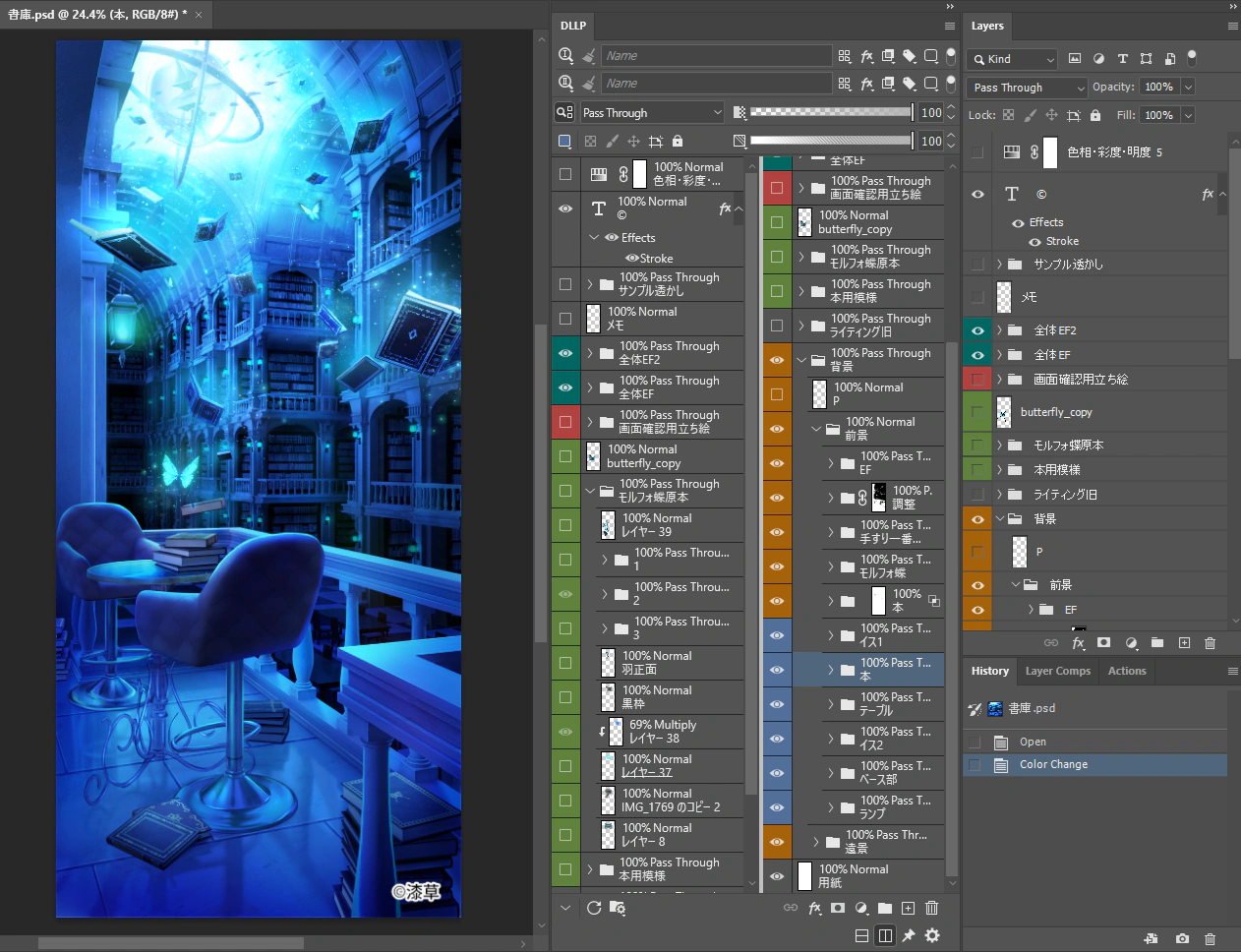
DLLP features a “Dual View” function that can split the layer panel in two (V1 / V2). You can apply independent, powerful filters to each of these views.
- V1 (Top Screen): Type “Character A, Character B” in the search box to display only main character-related items.
- V2 (Bottom Screen): Type “Background, Distant” in the search box to display only background-related items.
With this combination, you can create a noiseless space where only the elements you want to work on right now exist out of hundreds of layers, and work seamlessly while moving between them.
5. Synergy with “Always-On Blend Mode Display”
DLLP always displays the “Blend Mode” and “Opacity” of each layer as text on the list.
By combining this with filters, the task of detecting anomalies and checking properties is completed in an instant, such as “Extract a layer named ‘Add’ and glance at the list to confirm if it is really set to Linear Dodge (Add) mode”. There is not even the hassle of clicking layers one by one to check properties.
Conclusion: You Are Throwing Away Your Lifespan and Cash on “Layer Searching” Today Too
The act of “searching” is not a creative task that should be done with human eyes and hands. It is simply an “extraction process” that should be left to the system.
As mentioned above, you are continuously losing the value of about 40 hours (a full work week, roughly $1,000+) every year just to search for layers in Photoshop. The hidden costs caused by the useless variability of “not knowing how long the search will take” are also immeasurable. You must immediately stop the grit-and-determination, wrong-effort approach of “trying hard to find it faster” without realizing this fact.
Once you experience the exhilaration of extracting the target elements from a PSD in “1 second” using DLLP’s overwhelming filtering capabilities, you should never be able to return to the archaic and painful task of “visually scrolling to search” again.
Reclaim your precious time, lifespan, and the earnings you rightfully deserve, right now, with the system’s assist.
Stop Wasting Time on Layer Verification
Experience the full power of DLLP for 30 days. Installation is easy, and you can start improving your work efficiency right away.
Start Free Trial