The Hidden Time Sink: Checking Layer Properties
When working on a complex digital painting, UI design, or composite in Photoshop, layer properties like “Opacity” and blend modes such as “Multiply” or “Overlay” are absolutely critical to the quality of your artwork.
However, there is a fundamental limitation in Photoshop’s UI that many professionals secretly resent: You cannot see the opacity or blend mode of a layer without actually selecting (clicking) it.
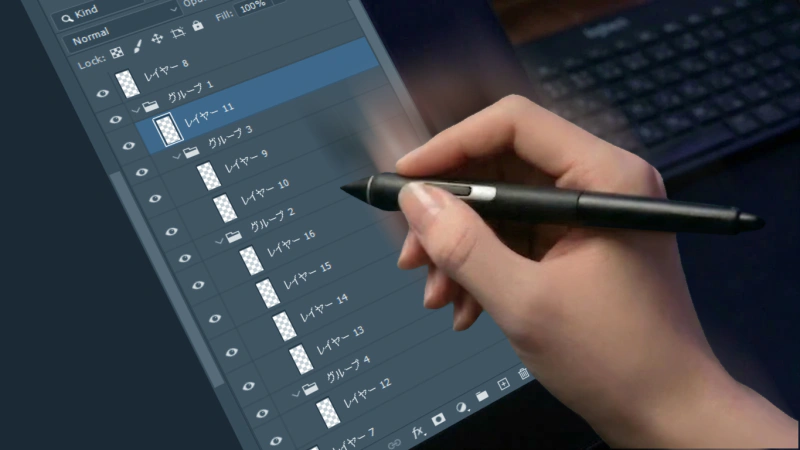
Imagine inheriting a complex PSD file created by someone else (for example, one with finely separated color layers to allow for later adjustments, or complex effects applied for the final polish). To figure out how the layers are set up, you have to click through the layers one by one, constantly checking the display at the top of the layer panel.
“Is this layer’s opacity 50%? Or 70%?” “Is this shadow layer set to Multiply? Or Screen?”
Click. Check. Click. Check. Click. Check. Having to verify this every single time is incredibly tedious.
This repetitive action is not just an annoyance—over the course of an entire project, it quietly but surely drains your precious working hours.
Common Workarounds (and Their Limits)
To deal with this shortcoming of the standard UI, professionals use various workarounds in the field. Here are some examples:
- Writing properties into the layer name: Meticulous designers sometimes name their layers things like
Shadow_Multiply_50%. While this is helpful for the person taking over the data, maintaining it is an enormous hassle. If you later decide to adjust the shadow to 45%, you have to explicitly rewrite the text of the layer name. In reality, it is very rare to encounter a project where this rule is strictly followed until the very end. - Color-coding blend modes with labels: Applying rules like red labels for “Multiply” and yellow labels for “Screen” provides visual clues. However, there is a strict limit to the number of label colors, and this method cannot represent the numeric value of “Opacity.”
However, are these truly fundamental solutions? Unfortunately, they are ultimately just treating the symptoms. When you want to focus on creative work, you shouldn’t have to unnecessarily take your hand off the pen just to maintain these rules.
The Ultimate Solution: “Always-On Display” with DLLP
If you want to reduce this “clicking just to check” to absolute zero, the only way is to extend the functionality of the layer panel itself. However, Photoshop’s standard layer panel is built in a way that prevents it from being extended. That’s why the custom Photoshop plugin DLLP (Dual Linked Layer Panel) was developed.
DLLP was designed with a simple approach: if the standard layer panel cannot be extended, let’s just build another, highly functional layer panel completely from scratch.
See Everything at a Glance
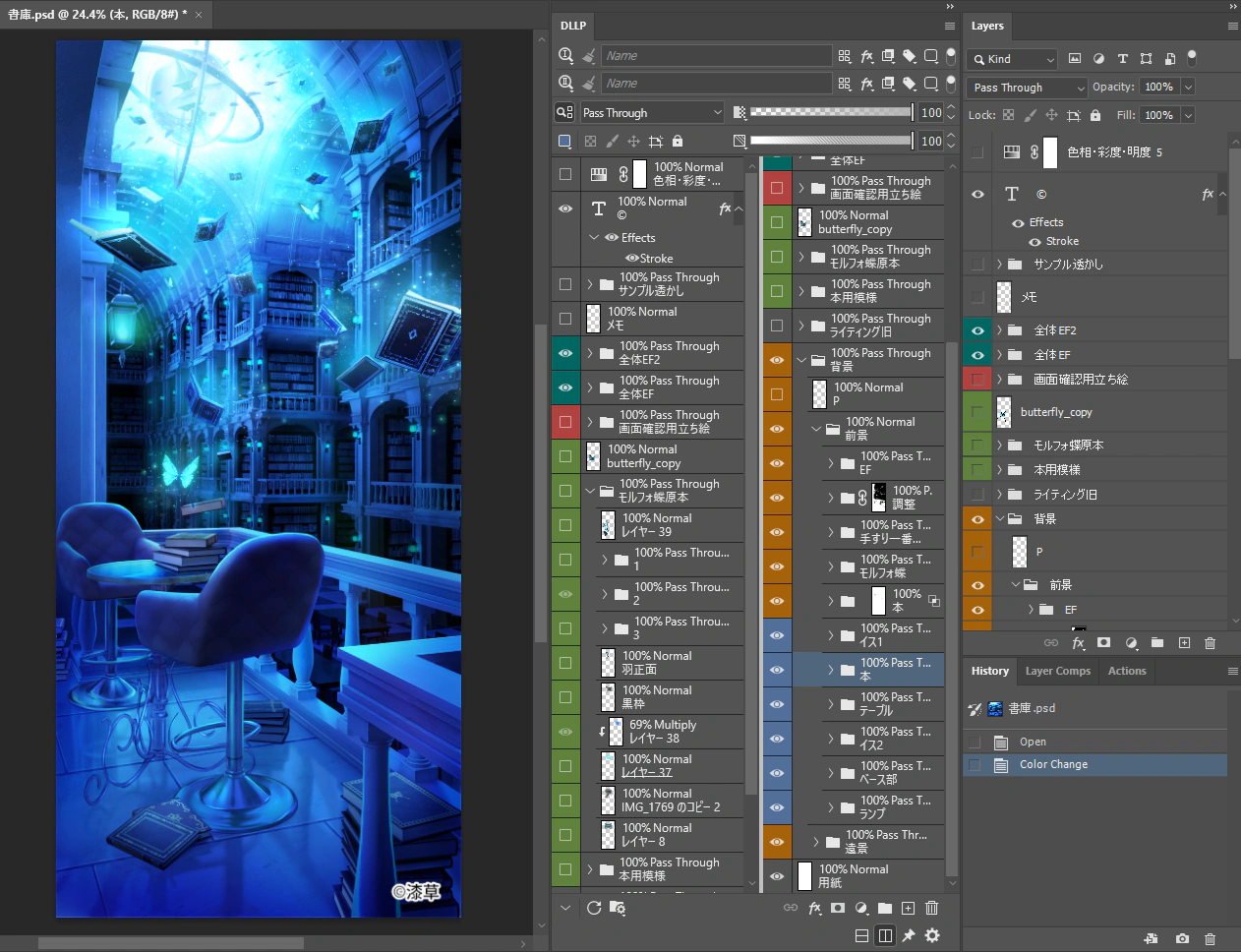
One of DLLP’s biggest features is that the opacity and blend mode are constantly displayed as text for every single layer in the list.
With DLLP, you can check the mode and opacity of all layers at a glance without ever clicking.You no longer need to click to find out layer properties. By simply scrolling down your layer list, you can intuitively grasp:
- Which layers have lowered opacity.
- Exactly what that opacity percentage is.
- Which blend modes like Overlay or Soft Light are being used.
Don’t Get Fooled by “Fake Layer Names”
Because the actual opacity and blend mode are always displayed, accidents where you trust an outdated, neglected layer name like Glow (Screen 80%) are completely eliminated. If you change the opacity on the Photoshop side, the display on the DLLP panel updates in real-time.
The psychological and physical burden of verifying, “Wait, what were the settings on this layer again?” vanishes completely, and you can always accurately grasp the necessary information at any time.
Stop Verifying, Start Creating
Isn’t it time to end the torment of clicking layers one by one just to check their opacity and blend modes?
By adopting DLLP and eliminating this small friction from your workflow, your daily creative process and your ability to interpret other people’s PSD files will become amazingly smooth.
Stop Wasting Time on Layer Verification
Experience the full power of DLLP for 30 days. Installation is easy, and you can start improving your work efficiency right away.
Start Free Trial