That “Despair” When Opening Someone Else’s PSD
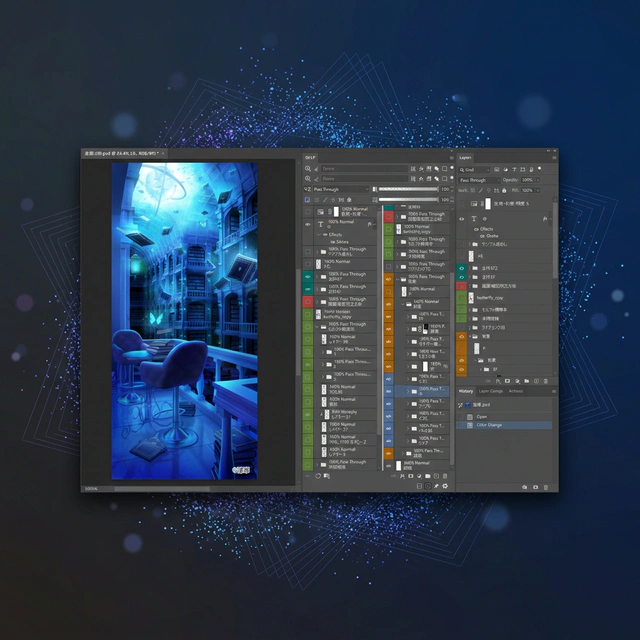
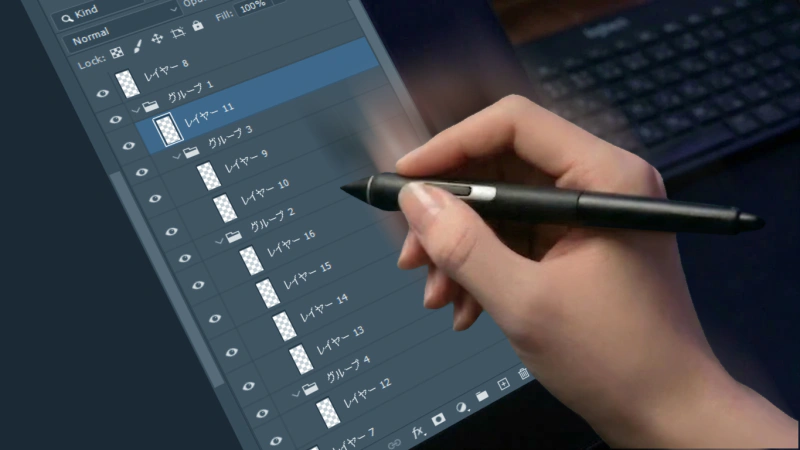
When working professionally, you often have to take over data from others. The moment you open a file and see hundreds of layers listed with only token group organization, how do you feel?
“Where do I even start with this…”
An unorganized PSD is not just a “heavy file.” It is a black hole that drains the motivation and time of the next person working on it.
Here are the three most common pain points:
- You can’t find the layer of the object you want to fix.
- You have to click every single layer just to check if it has a blend mode like “Multiply” or “Overlay” applied.
- The groups are nested so deeply that you get lost trying to figure out which hierarchy you are currently looking at.
Manual Organization Tricks to Try First
Before relying on tools, here are a few basic organization tricks I always make sure to do when I receive data on the job. Just doing these makes starting the work much smoother.
Toggle visibility (eye icon) for each group to get a “feel” for what it affects: Don’t try to examine the contents right away. First, toggle the visibility of the main groups one by one to see what changes on the canvas.
Give “easy-to-understand names” to unnamed groups: Unless the project has strict naming regulations, you should proactively rename them to clear, definitive names you are certain of, like “Background” or “Effects”.
Use layer colors to label objects: Apply color labels to layers. Even roughly color-coding by object is very convenient. As someone who primarily works on backgrounds, I often use different colors for foreground, midground, and background elements.
Use the Move Tool (Auto-Select ON) or Move Tool + Right-Click: Click directly on a drawing area on the canvas to instantly locate where that element is in the layer panel. If you use Move Tool + Right-Click, all the layers at the clicked location will appear in a menu, allowing you to get a rough idea of the layers involved. Keep in mind that reverse-looking from the screen is often overwhelmingly faster than scrolling down the list to find it.
The screen when right-clicking on the canvas while the Move Tool is selected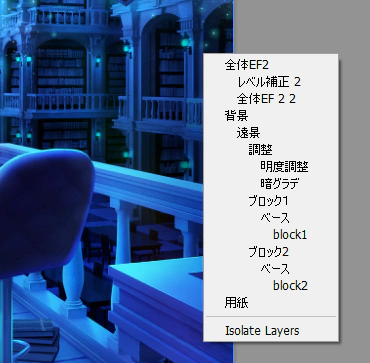
The Limits of the Standard Panel
The standard Photoshop layer panel is sufficient for simple compositing or working with a few dozen layers. However, when dealing with hundreds or even over a thousand layers in a professional setting, various “limits” become apparent.
In particular, the inconvenience of checking opacity and blend modes cannot be solved no matter how you try to work around it. The design where you have to click a layer just to see its opacity or blend mode wastes an enormous amount of time just on the act of “looking for something.”
I sometimes see cases where people make notes like “(Multiply)” or “(70%)” in the layer name, but it’s not realistic to do that for every layer, and it adds extra work if there are changes later. In my experience, it’s rare to see data where this noting practice is thoroughly applied.
The DLLP Solution: Liberation from Verification Work
Developed to reduce this “wasted time decoding someone else’s PSD,” the Photoshop-exclusive plugin “DLLP (Dual Linked Layer Panel)” was created.
1. “Always-On” Display of Blend Modes and Opacity
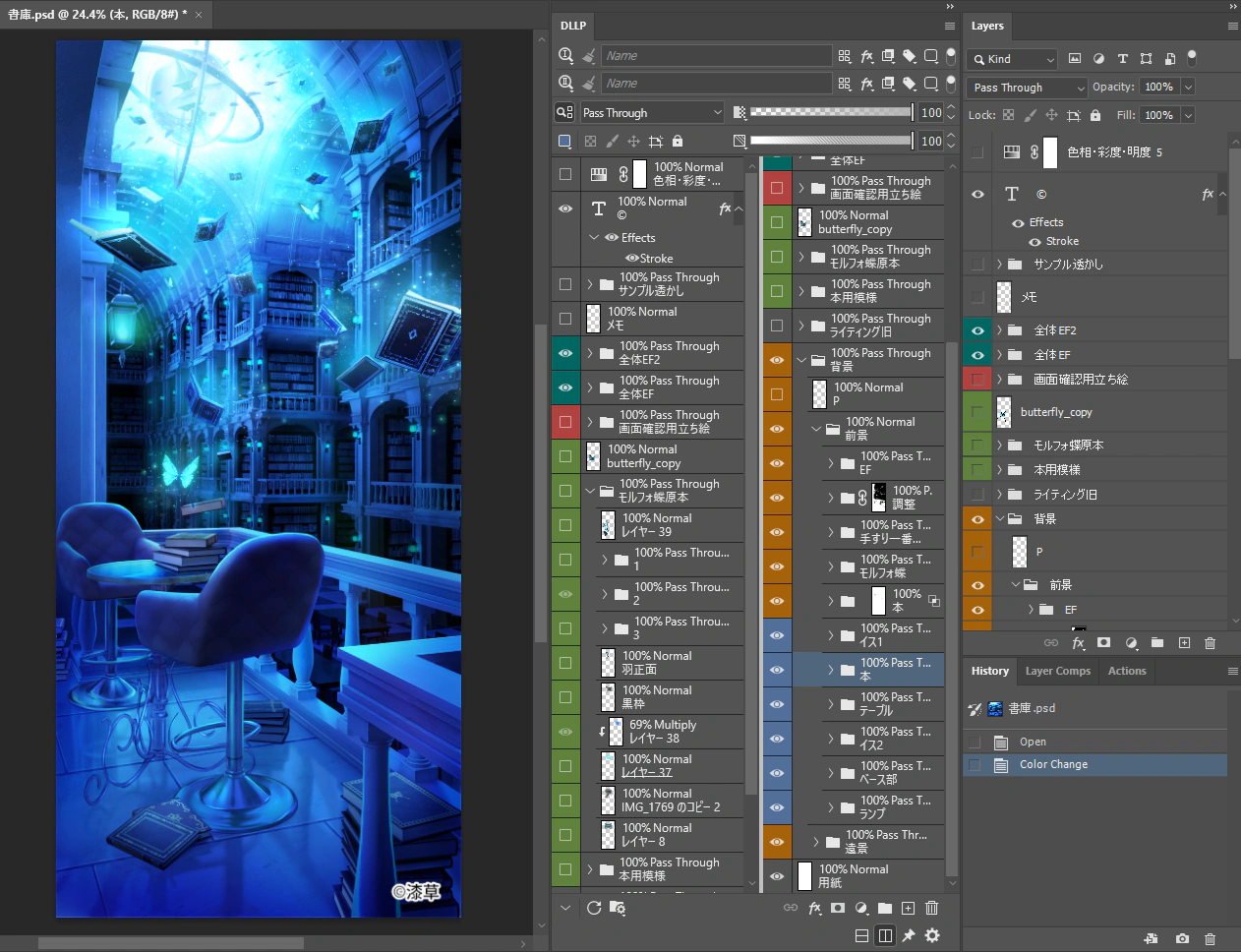
One of the biggest features of DLLP is that opacity and blend modes are always displayed as text for each layer on the list.
You will never again fall into the trap of a layer named “Multiply” actually being in Normal mode. Without even having to select a layer, just by glancing down the list, you can instantly grasp the entire structure and where special effects are applied.
2. Isolate “Characters” and “Backgrounds” with Dual View
When a PSD is heavy and structurally complex, there are times you want to compare elements at the very top with those at the very bottom. DLLP employs a Dual View structure that can split the layer panel vertically or horizontally into two.
With this feature, you can apply a filter to display only the “Character group” in one view, and the “Background group” in the other. This allows you to simultaneously look at different areas and organize elements using drag-and-drop.
Summary: Stop Decoding, Start Visualizing
How about making today the last day you waste 30 minutes just grasping the structure of someone else’s PSD? The small decision to “change your tool” will save you from the empty time spent continuously searching for layers.
Stop Wasting Time on Layer Verification
Experience the full power of DLLP for 30 days. Installation is easy, and you can start improving your work efficiency right away.
Start Free Trial